
FIRE AND ASHES Controls: Voice, Combat, AND PC Inputs
Learn FIRE AND ASHES controls for voice actions, melee combat, inventory, and Electric Voice. Get practical tips for playing with or without a microphone.
Jump to
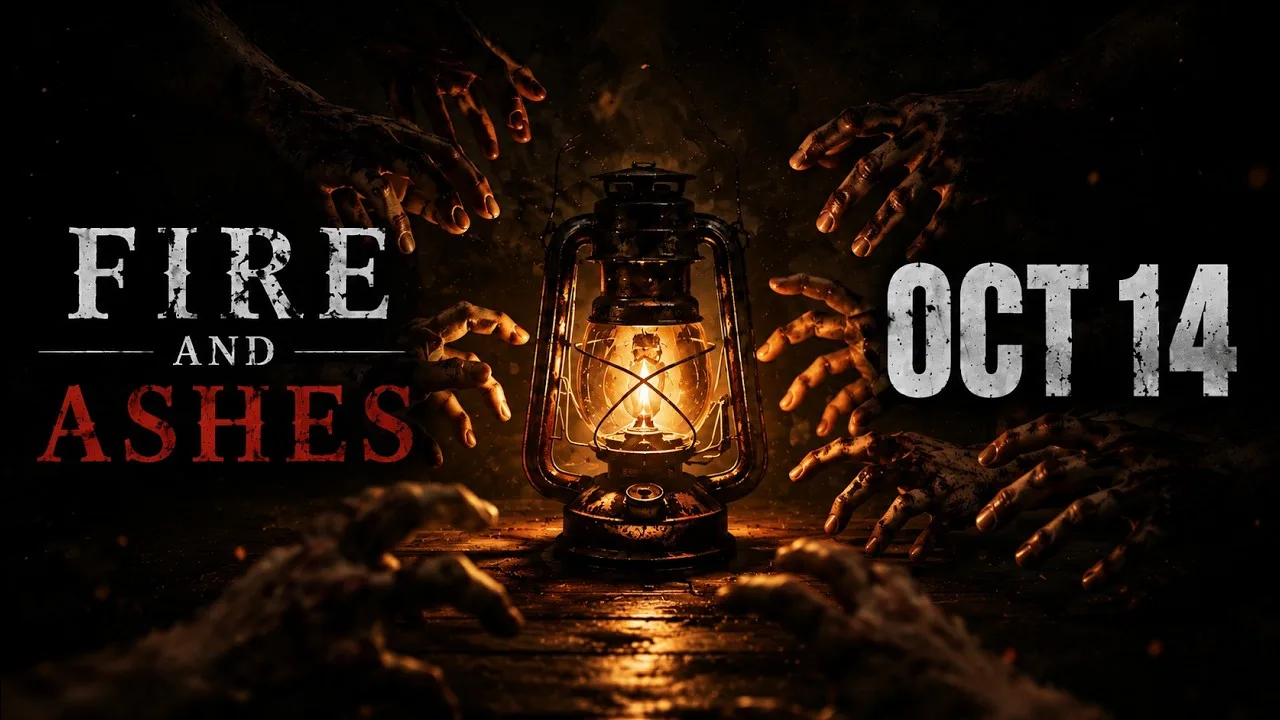
FIRE AND ASHES controls at a glance
FIRE AND ASHES controls make your own voice part of the danger: a conversation can attract attention, while a deliberate shout can create an opening. Learning FIRE AND ASHES controls means understanding how physical inputs, microphone actions, and combat timing work together. You can also complete the entire game without a microphone, so speaking aloud is optional.
You play as Henry Gray, fighting through a psychiatric hospital and the nightmare locations connected to his past. Exploration, inventory use, improvised weapons, and sound all contribute to survival. Before worrying about faster attacks, get comfortable with the difference between interacting with something, choosing an inventory item, and using your voice.
| Action | Control or behavior |
|---|---|
| Talk during a PC conversation prompt | Speak with microphone input enabled, or press E |
| Open inventory automatically | Interact with a suitable object |
| Open inventory manually | Use the manual inventory control |
| Parry an incoming attack | Press block at the moment the enemy is about to strike |
| Perform a counterattack | Use the prompted attack input, or shout with microphone input enabled |
The E prompt applies to conversation on PC. Follow the displayed prompts for other actions, including attacking, blocking, and switching weapons.
Separate recognizing an action from performing it quickly. When a tutorial appears, connect its prompt to what Henry needs to do: speak, defend, select an item, or change weapons. That makes the controls easier to remember once an enemy interrupts your exploration.
Pay particular attention to contextual prompts. A conversation, a locked door, and an electrical object involve different systems, even when each initially looks like another interaction.
Official page: FIRE AND ASHES (store.steampowered.com)
Microphone controls: silence, distractions, and dialogue
The microphone changes how FIRE AND ASHES controls feel because sound carries gameplay consequences. Voice recognition responds to breathing, whispers, screams, and spoken words. Your voice can expose your position, distract an enemy, or support an attack.
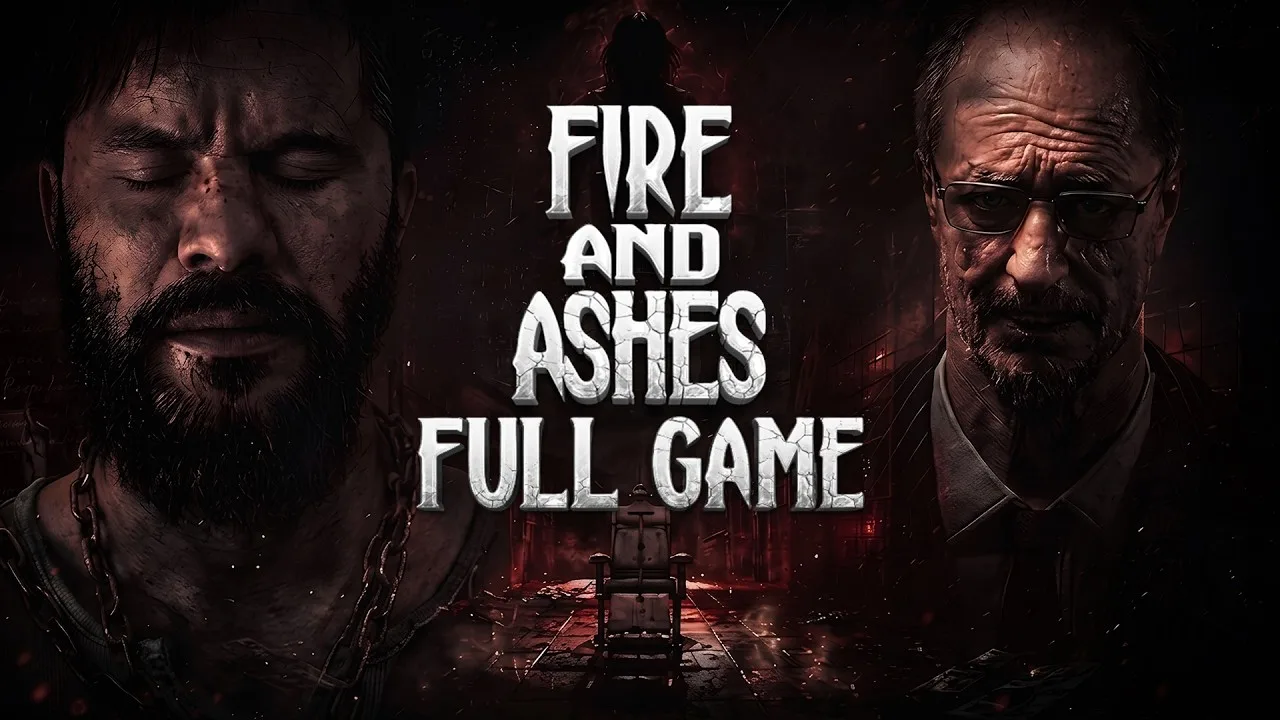
The important distinction is intent. Speaking because you want an enemy to react is useful. Speaking to someone outside the game can produce an unwanted interruption.
| Voice behavior | Gameplay role |
|---|---|
| Breathing and whispering | Sounds the voice-recognition system detects |
| Staying quiet | Helps avoid giving away your position |
| Shouting or screaming | Distracts enemies and can create time to escape |
| Taunting opponents | Creates openings for melee attacks |
| Shouting with Electric Voice | Activates the device’s electrical effect |
Decide whether you want voice input active
Use microphone play when you want sound to become part of your decisions. Keep quiet while avoiding attention, then speak deliberately when you want a response.
For streaming, chatting, or playing in a shared room, consider playing without microphone input. Ordinary commentary can draw enemies into encounters you never intended to start. The full game remains completable without a microphone, so you can choose the input style that fits your surroundings.
Keep that choice consistent with your immediate goal. If you are trying to inspect rooms without provoking enemies, avoid talking casually while microphone input is active.
Give a distraction a purpose
Choose your intended escape direction before shouting to distract an enemy. The distraction creates an opportunity; you still need to use it.
Likewise, taunt when you are prepared to act on the resulting opening. Creating a melee opportunity while still searching for your weapon adds another task at the wrong moment.
For conversations, use the displayed talk prompt. On PC, pressing E gives you a button-based way to respond without speaking. This makes dialogue easier to manage when you want direct input instead of microphone interaction.
Melee controls: blocking, parrying, and counterattacks
Combat is where FIRE AND ASHES controls demand more than remembering an attack input. Henry can fight with improvised weapons, block incoming strikes, and turn a timed defense into a counterattack.
A parry requires pressing block just as an enemy is about to hit. A successful parry knocks the opponent off balance and opens a brief opportunity to retaliate.
Connect the parry to its follow-up
Practice the sequence as a connected action:
- Watch the opponent’s incoming strike.
- Press block at the moment the strike is about to land.
- Look for the counterattack icon above the enemy.
- Use the available counterattack while the opening lasts.
The counterattack depends on having enough energy. A successful defensive move does not remove that requirement.
Watch your energy before attempting the sequence. If it is too low, do not plan around a powerful follow-up. Keep your attention on surviving the exchange rather than waiting for an attack opportunity you cannot use.
Use the counterattack prompt
The icon above an enemy signals that a powerful counterattack is available. Follow that prompt instead of assuming every ordinary attack after a block will produce the same result.
With microphone input enabled, shouting can replace the button press for a counterattack. That gives voice input a direct combat role beyond attracting or distracting enemies.
Choose the method you can perform deliberately. If microphone interaction is making encounters harder to manage, use button-based play while learning the timing.
Keep weapon condition in mind
Melee weapons can break. Weapon switching therefore belongs in your combat preparation alongside attack and block.
Check your carried weapons before committing to another fight, and familiarize yourself with the switching prompt. Avoid spending the middle of an encounter figuring out which replacement you have available.
Treat energy and weapon durability as separate concerns. Having a weapon in hand does not guarantee enough energy for a counterattack, while having energy does not protect a damaged weapon from breaking.
Electric Voice controls and charge management
Electric Voice adds another layer to FIRE AND ASHES controls. This device turns vocal input into an electrical attack against compatible enemies with implanted diodes.
Its effect reaches the nearest compatible enemy. Sustained vocal input keeps the current flowing, allowing the device to move from a brief stun toward a lethal attack.
| Electric Voice function | How it works |
|---|---|
| Activate an electrical attack | Shout while using the voice-activated device |
| Maintain the current | Continue shouting |
| Stun a compatible enemy | Apply current to incapacitate the target |
| Sustain a lethal attack | Keep the electrical effect running longer |
| Power environmental objects | Use the device with electrical doors, lamps, and other powered objects |
| Restore its limited charge | Recharge it at a special electrical box |
Match the electrical attack to your goal
Use a short stun when your goal is to create space. Stop applying current once you have the opening you need, then move or follow up.
For a sustained attack, keep your attention on the device’s charge as well as the enemy. Electric Voice has a limited supply, and continuing the current consumes a resource that also serves environmental functions.
Because the device affects the nearest compatible enemy, pay attention to nearby opponents before activating it. Do not build your plan around a distant target while another eligible enemy is closer.
Remember that it also powers the environment
Electric Voice can operate electrical doors, lamps, and objects that need power. Its usefulness extends beyond combat.
Check the device before dealing with an electrical obstacle. Recharge at the special electrical boxes when necessary, and account for upcoming environmental use before spending charge on another enemy.
In the forest, powered lamps create areas of protection from demons. Those lights need monitoring because their illumination fades. Watch both the lamp’s condition and your device’s remaining charge, and activate the next light before the current protection disappears.
That changes the practical question from “Can I stun this enemy?” to “How much power do I need to keep moving?” Manage both uses together.
Inventory, platform support, and preparing your inputs
Learning FIRE AND ASHES controls also means getting comfortable with inventory interactions. The game supports automatic inventory opening when you interact with an appropriate object, along with manual opening.
That distinction matters when you have already collected an item but still need to use it. Picking up a key and applying it to the correct door are separate actions.
Read the interaction before choosing an item
When an object brings up the inventory, focus on what the object requires. Match a key or other relevant item to the interaction rather than repeatedly attempting the same action without a selection.
Use manual inventory access to review what you are carrying before moving into another encounter. Check your healing supplies, replacement weapons, and important items while you have room to think.
Avoid turning inventory management into a rushed combat task. Familiarity with your supplies makes weapon switching and item use easier to handle when enemies close in.
Choose your preferred input device
FIRE AND ASHES is available on Windows PC, PS5, and Xbox Series X|S. Its input support includes controller play on PC and keyboard-and-mouse support on Xbox.
| Platform | Input support |
|---|---|
| Windows PC | Full controller support, including DualShock and DualSense |
| PS5 | Controller play with optional microphone-based gameplay |
| Xbox Series X|S | Controller play and console keyboard-and-mouse support |
On PC, use controller support if that is your preferred way to handle movement and combat. On Xbox, keyboard and mouse provide another input option.
Before settling into a session, review these essential actions:
- Talking through the displayed conversation prompt.
- Opening inventory manually.
- Selecting an item for a contextual interaction.
- Attacking, blocking, and switching weapons.
- Recognizing the counterattack icon.
- Activating Electric Voice and monitoring charge.
Start with the actions that keep you alive, then add deliberate microphone use. You can learn melee timing and inventory interactions without also needing to manage every spoken sound.
FAQ
Can you complete FIRE AND ASHES without a microphone?
Yes. You can complete the entire game without a microphone. Voice recognition adds sound-based interactions involving breathing, speech, distractions, and attacks, but speaking aloud is optional.
What does E do in FIRE AND ASHES controls on PC?
Pressing E is an alternative to speaking when a conversation displays the talk prompt. Use the prompts shown for other interactions rather than treating E as a universal command.
How do you parry and counterattack?
Press block at the moment an enemy is about to strike. A successful parry puts the opponent off balance. With enough energy, a counterattack icon appears above the enemy; use the prompted input, or shout with microphone input enabled.
How do you recharge Electric Voice?
Use a special electrical box to replenish the device’s limited charge. Monitor that charge during combat and environmental interactions, since Electric Voice can also power doors, lamps, and other electrical objects.
Continue with
 FIRE AND ASHES Graphics Settings: PC Performance GuideTune FIRE AND ASHES graphics settings with a practical look at resolution, VSync, anti-aliasing, display modes, and PC requirements for clearer gameplay.
More in Settings & Controls
FIRE AND ASHES Audio Settings: Mic AND Sound Guide
Adjust FIRE AND ASHES audio settings for microphone use, voice controls, and sound-triggered combat, or play the complete horror game without a mic.
FIRE AND ASHES Controller Support: PC AND PS5 Guide
See FIRE AND ASHES controller support on PC and PS5, including compatible gamepads, remapping, sensitivity controls, microphone options, and input fixes.
FIRE AND ASHES Languages: Full PC AND PS5 Support Guide
Explore FIRE AND ASHES languages on PC and PS5, including English and Russian audio, subtitles, and Portuguese differences. Choose your preferred version.
FIRE AND ASHES Performance: PC Settings AND FPS Guide
Improve FIRE AND ASHES performance with a practical PC settings guide covering system requirements, display options, stuttering, and microphone setup tips.
Continue exploring
Join the community
Official channels for news, updates and player help: