
FIRE AND ASHES Controller Support: PC AND PS5 Guide
See FIRE AND ASHES controller support on PC and PS5, including compatible gamepads, remapping, sensitivity controls, microphone options, and input fixes.
Jump to
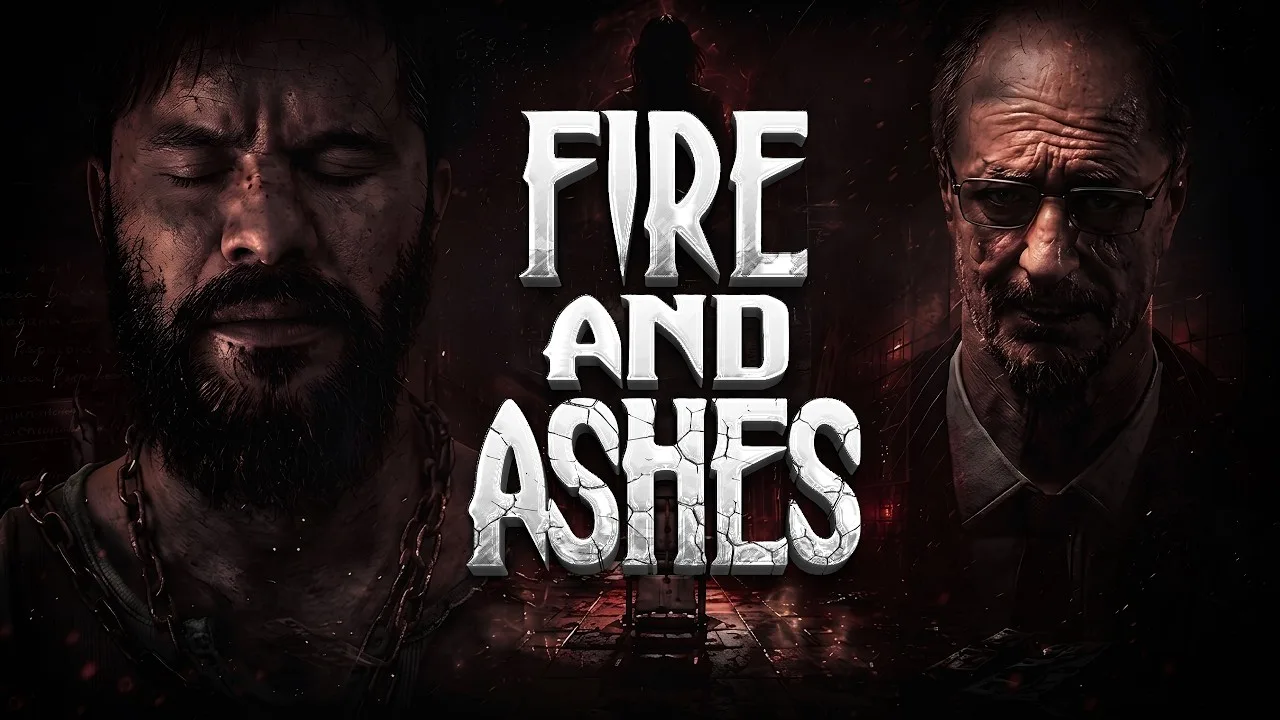
Does FIRE AND ASHES Support Controllers?
Yes—FIRE AND ASHES controller support includes full controller support on PC, with Xbox-compatible XInput controllers, DualShock 4, and DualSense supported. That matters when you’re navigating dark hospital corridors, lining up attacks, and deciding whether to use your voice or a button during tense encounters. FIRE AND ASHES controller support also includes PC remapping, sensitivity adjustments, and axis inversion, while the PS5 version offers controller play with optional microphone interaction.
You play Henry Gray, whose journey begins inside a psychiatric hospital in 1977. Exploration, scavenging, puzzles, and close-range encounters all put different demands on your controls. Getting comfortable with camera movement and interaction inputs helps you focus on the nightmare around you.
Here’s the practical breakdown:
| Platform or controller | Supported features |
|---|---|
| Windows PC | Full controller support |
| Xbox-compatible XInput controller on PC | Controller input and Xbox button prompts |
| DualShock 4 on PC | Controller support through wired and wireless connections |
| DualSense on PC | Controller support through wired and wireless connections |
| PS5 | Controller play and optional voice interaction |
On PC, you can adjust the controller layout rather than work around an uncomfortable assignment. Both horizontal and vertical camera axes can be inverted, and controller sensitivity is adjustable.
A microphone is optional, too. The game can be completed without one, so playing with a gamepad doesn’t require shouting into a headset or controller microphone.
For a controller-focused session, concentrate on three decisions: your camera settings, your button layout, and whether you want voice recognition active. Those choices cover the main ways you can personalize FIRE AND ASHES controller support.
Official page: FIRE AND ASHES (store.steampowered.com)
PC Controller Settings: Remapping, Sensitivity, and Inversion
The PC version gives you several useful input adjustments. Start with camera direction, then tune sensitivity, and finish by checking your button assignments. This keeps each change easy to judge instead of making the controls feel different in several ways at once.
 Image: PlayStation Store
| PC input setting | Available adjustment | Practical use |
|---|---|---|
| Controller remapping | Change controller assignments | Move uncomfortable actions to more accessible buttons |
| Controller sensitivity | Adjust camera response | Tune how quickly the view moves |
| Controller Y-axis inversion | Invert vertical camera input | Match your preferred up-and-down behavior |
| Controller X-axis inversion | Invert horizontal camera input | Match your preferred left-and-right behavior |
| Keyboard remapping | Change keyboard assignments | Customize keyboard controls |
| Mouse sensitivity and inversion | Adjust sensitivity and invert either axis | Configure mouse camera movement |
Set camera direction before camera speed
Check whether pushing the stick upward moves the view in the direction you expect. If you prefer inverted vertical controls, change the Y-axis setting before adjusting sensitivity. Apply the same check to the horizontal axis if you use inverted X-axis controls.
Then turn toward a nearby object and make a small correction back toward it. Lower sensitivity if you repeatedly swing past your target; raise it if turning feels too slow for your preference. Make gradual changes so you can judge each adjustment.
No specific numerical sensitivity value is necessary here. Choose a response that lets you scan a room and settle the camera on an object without constantly correcting yourself.
Remap around the actions you use
Exploration involves collecting clues and resources, while combat includes improvised melee weapons and a pistol. Check the assignments for those actions before settling into a longer session.
Use controller remapping to move awkward inputs. Keep the layout easy to remember, especially if you switch between games with different interaction conventions. Review your assignments after changing them rather than relying on muscle memory from another horror game.
FIRE AND ASHES controller support provides the tools to personalize your inputs, but sensitivity and remapping serve different purposes. Sensitivity changes how the camera responds; remapping changes where an action lives. Adjust the setting that matches the problem you’re actually having.
Can You Play With a Controller Without a Microphone?
Yes. FIRE AND ASHES can be fully completed without a microphone. Voice recognition is part of its horror design, but you can use button alternatives instead of vocal actions.
With voice interaction active, the game responds to breathing, whispers, screams, and words. That creates a direct connection between your surroundings and Henry’s danger: sound can attract attention, distract enemies, or help you fight back.
Button alternatives let you handle those interactions without speaking. That’s useful when you want a quiet session or simply prefer keeping gameplay actions on the controller.
| Interaction | Voice-enabled behavior | Controller consideration |
|---|---|---|
| Attracting enemy attention | Shouting can lure enemies | A button alternative is available |
| Finishing moves | Vocal input can trigger finishers | A button alternative is available |
| Breaking through walls | A vocal action can accompany the interaction | A button alternative is available |
| Completing the game | A microphone adds voice interaction | A microphone is optional |
Choose your input method deliberately. If you prefer buttons, use the game’s button alternative rather than trying to force a vocal interaction to register. Check the displayed action prompt instead of assuming a particular face button handles every voice-related action.
If you use voice recognition, stay aware that loud sounds can reveal your position. Use your voice with a purpose: draw attention when you want an enemy to move, or stay quiet when attracting one would make the situation worse.
How Electric Voice fits into controller play
Electric Voice is a device that uses vocal input to deliver electrical attacks against enemies fitted with receiving diodes. Sustained shouting extends the current, and prolonged use can kill rather than merely stun.
The device also powers certain doors, lamps, and other electrical objects. Its charge is limited, and special electrical boxes recharge it.
Keep those resource limits in mind regardless of your preferred controls. Use shorter applications when your aim is to stun and conserve charge. Reserve prolonged attacks for situations where you intend to spend more energy dealing with the enemy.
FIRE AND ASHES controller support and optional microphone play let you choose how to interact, while Electric Voice still requires attention to charge management.
Troubleshooting Pause Menu and Item Pickup Problems
Controller compatibility and individual input problems are separate concerns in FIRE AND ASHES. You can have a supported gamepad and still encounter a delayed menu response or an interaction that temporarily stops working.
The specific problems to recognize are an unresponsive or heavily delayed Circle input when closing the pause menu, and occasional failures to pick up items. Pausing and unpausing can restore item interaction.
| Symptom | Relevant behavior | What to do |
|---|---|---|
| Circle does not close the pause window promptly | The close action can respond late or fail | Allow for the delay before judging the next input |
| Item pickup stops responding | Interaction can temporarily stop working | Pause, unpause, and try collecting the item again |
| Camera movement feels uncomfortable | Controller sensitivity and inversion are adjustable on PC | Adjust the relevant camera setting |
| An action is awkward to reach | Controller remapping is available on PC | Change its assignment |
When item interaction stops
If an item won’t respond, pause the game and then return to gameplay. Try the pickup again afterward. This is a targeted workaround for the interaction problem, rather than a reason to rebuild your entire controller layout.
Keep remapping separate from troubleshooting. If a familiar input suddenly stops collecting items, try the pause-and-unpause workaround before moving the action to another button.
When the pause menu responds slowly
A delayed Circle response can make it difficult to tell whether the menu accepted your input. Give it time to respond before pressing again. Repeated presses make it harder to track which action the game is processing.
This issue is especially relevant when you’re evaluating FIRE AND ASHES controller support during an opening session. Check movement, camera control, and interactions separately instead of using one troublesome menu action to judge the whole setup.
Combat also has rough animations and floaty enemy movement. Keep camera adjustments focused on aiming comfort; changing sensitivity won’t improve an enemy’s animation or movement behavior.
Put Your Controller Setup to Work in Exploration and Combat
FIRE AND ASHES combines scavenging, environmental puzzles, melee encounters, and shooting. Use those different activities to evaluate your layout rather than judging it entirely from menu navigation.
During exploration, practice bringing the camera onto an item or clue without overshooting it. Use that movement to decide whether your sensitivity needs another adjustment. Small corrections matter when you’re inspecting a room as much as broader turns matter when scanning a corridor.
For melee encounters, check that your attack assignment feels comfortable to repeat. Keep the game’s uneven combat behavior in mind when judging responsiveness. An awkward-looking enemy approach and an uncomfortable button assignment call for different responses.
When using the pistol, focus on whether you can settle the view where you intend. Adjust camera sensitivity for that control task instead of choosing a setting solely because it makes turning faster.
Environmental interactions deserve the same attention. Electrical puzzles and Electric Voice use put the focus on objects as well as enemies. Remember that the device has limited charge and can power certain environmental objects; manage it as a resource rather than treating every use as a combat action.
Before continuing, check these essentials:
- Camera: Set sensitivity and axis direction to match your habits.
- Assignments: Remap uncomfortable controller inputs on PC.
- Voice: Choose microphone interaction or button alternatives.
- Resources: Conserve Electric Voice charge when a brief stun is enough.
- Interactions: Try pausing and unpausing if item pickup stops responding.
FIRE AND ASHES controller support gives you room to tailor the controls. Once camera movement and action placement feel comfortable, put your attention back on exploring, solving puzzles, and managing the tools Henry finds.
FAQ
Does FIRE AND ASHES controller support include Xbox controllers on PC?
Yes. The PC version supports XInput controllers and Xbox button prompts. It also provides controller remapping, sensitivity adjustments, and inversion for both camera axes, allowing you to personalize the layout and camera response.
Can I use a DualShock 4 or DualSense on PC?
Yes. Both DualShock 4 and DualSense controllers are supported on PC through wired and wireless connections. Choose the controller you prefer, then adjust the available camera settings and button assignments around your usual habits.
Do I need a microphone to finish FIRE AND ASHES?
No. You can complete the game without a microphone. Button alternatives handle vocal interactions, including attracting attention and triggering finishing moves. Voice recognition remains an optional way to interact with enemies and the environment.
What should I do if I can’t pick up items?
Pause the game, unpause, and try the pickup again. That workaround can restore item interaction when it temporarily stops responding. If the problem is simply an uncomfortable assignment, use the PC version’s controller remapping options to change the input.
Continue with
 FIRE AND ASHES Controls: Voice, Combat, AND PC InputsLearn FIRE AND ASHES controls for voice actions, melee combat, inventory, and Electric Voice. Get practical tips for playing with or without a microphone.
More in Settings & Controls
FIRE AND ASHES Audio Settings: Mic AND Sound Guide
Adjust FIRE AND ASHES audio settings for microphone use, voice controls, and sound-triggered combat, or play the complete horror game without a mic.
FIRE AND ASHES Graphics Settings: PC Performance Guide
Tune FIRE AND ASHES graphics settings with a practical look at resolution, VSync, anti-aliasing, display modes, and PC requirements for clearer gameplay.
FIRE AND ASHES Languages: Full PC AND PS5 Support Guide
Explore FIRE AND ASHES languages on PC and PS5, including English and Russian audio, subtitles, and Portuguese differences. Choose your preferred version.
FIRE AND ASHES Performance: PC Settings AND FPS Guide
Improve FIRE AND ASHES performance with a practical PC settings guide covering system requirements, display options, stuttering, and microphone setup tips.
Continue exploring
Join the community
Official channels for news, updates and player help: