
FIRE AND ASHES Performance: PC Settings AND FPS Guide
Improve FIRE AND ASHES performance with a practical PC settings guide covering system requirements, display options, stuttering, and microphone setup tips.
Jump to
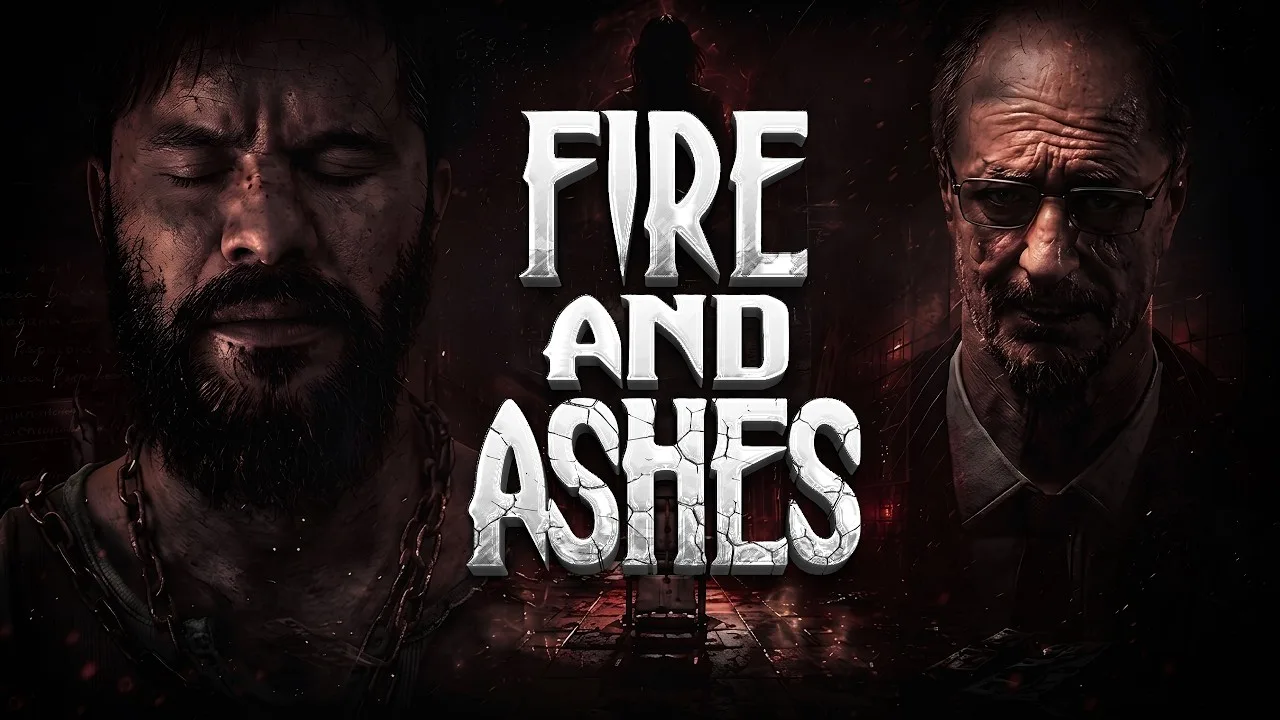
Start With a Stable, Readable Picture
Uneven FIRE AND ASHES performance can make a tense hallway encounter harder to read. Improving FIRE AND ASHES performance starts with checking your hardware, adjusting the supported display controls, and comparing changes in the same location. Aim for consistent movement and clear combat cues before chasing a sharper picture.
The Windows version includes resolution options, anti-aliasing, field-of-view adjustment, VSync, and multiple window modes. Those controls give you a practical starting point for balancing image quality and responsiveness.
| Display feature | Windows support |
|---|---|
| Widescreen resolutions | Supported |
| 4K resolution | Supported |
| Field-of-view adjustment | Supported |
| Windowed mode | Supported |
| Borderless windowed mode | Supported |
| Anti-aliasing | Supported |
| VSync | Supported |
Start by identifying the problem you actually want to solve. Constantly sluggish camera movement calls for a different comparison than an occasional hitch. Screen tearing is another issue entirely, while difficulty seeing through dark rooms concerns visibility.
Keep those problems separate as you adjust settings. Otherwise, you can end up lowering image quality without improving the behavior that bothered you.
Choose a recognizable stretch of hallway for comparisons. Walk through it, turn the camera, and repeat after each adjustment. Keep the route and movement similar so the difference is easier to judge.
Official page: FIRE AND ASHES (store.steampowered.com)
Check the PC Requirements Before Tuning
The hardware requirements give you a useful baseline for FIRE AND ASHES performance. Both configurations call for a 64-bit processor, 64-bit Windows, and 8 GB of RAM. The graphics recommendation changes from a GeForce GTX 1060 at minimum to an RTX 3060 at recommended.
 Image: PlayStation Store
| Component | Minimum | Recommended |
|---|---|---|
| Operating system | Windows 10 or Windows 11, 64-bit | Windows 10 or Windows 11, 64-bit |
| Processor | Intel Core i5-4440 or equivalent | Intel Core i7-4770k or equivalent |
| Memory | 8 GB RAM | 8 GB RAM |
| Graphics | GeForce GTX 1060 or equivalent | GeForce RTX 3060 or equivalent |
| DirectX | Version 11 | Version 11 |
| Available storage | 30 GB | 30 GB |
| Sound card | DirectX-compatible | DirectX-compatible |
Compare your entire configuration with these requirements. A matching graphics card is only part of the picture; the processor, memory, and operating system also matter.
If your system sits near the minimum configuration, begin by comparing resolutions and anti-aliasing choices. Prioritize movement that stays comfortable during exploration and close combat.
On hardware around the recommended configuration, establish a baseline before increasing image quality. Raise the resolution or anti-aliasing quality separately, then repeat your comparison route.
For a 4K display, test the game at your intended resolution rather than choosing it solely because the option exists. Resolution support describes an available display format. Measure how your own machine handles it during play.
Keep a short record of your starting configuration and any changes. That gives you a clear way back when a sharper image comes with less comfortable camera movement.
Adjust the Supported Graphics Settings
Tune FIRE AND ASHES performance through the controls the Windows version supports. Use the recommendations below as starting choices, then compare their effect on your machine.
| Setting | Recommended starting choice | Why it helps |
|---|---|---|
| Resolution | Your display’s native resolution; compare a lower option if movement feels sluggish | Lets you judge sharpness against rendering demand |
| Anti-aliasing | Compare the available choices before settling on one | Helps balance edge smoothing, clarity, and workload |
| VSync | Enable for visible tearing; compare disabled for responsiveness | Lets you assess the tradeoff between tearing control and input feel |
| Window mode | Start with borderless windowed; compare windowed if needed | Provides a straightforward way to test presentation behavior |
| Field of view | Choose a comfortable view and keep it consistent during comparisons | Prevents a changing camera view from complicating your assessment |
Resolution and anti-aliasing
Start at native resolution to establish how the image should look on your screen. If movement feels consistently heavy, select a lower resolution and repeat the same route.
Look at both responsiveness and readability. Check doorways, objects you can interact with, and enemies farther down a hallway. Keep the lower resolution only if the improvement feels worthwhile.
Next, compare the available anti-aliasing choices. Pay attention to jagged edges when standing still and visual shimmer when moving. Settle on the option that gives you an acceptable picture without making movement less comfortable.
Change resolution and anti-aliasing separately. Changing both together makes it harder to identify which adjustment helped.
VSync and window mode
Use VSync to address visible tearing across the image. Compare camera turns with it enabled and disabled, paying attention to how promptly the view follows your input.
Keep the comparison in the same area. A quiet room and a busy fight make poor substitutes for each other when judging a small settings change.
Borderless windowed and windowed modes are both available. Compare them if presentation feels uneven, but keep resolution and other settings consistent where possible.
Field of view
Set the field of view for comfortable navigation and enemy awareness. Check how nearby objects, corridors, and opponents look while turning.
Avoid changing it repeatedly during other tests. A different view can change your impression of speed and distance, making comparisons harder.
For FIRE AND ASHES performance tuning, a repeatable comparison is more useful than changing every available control at once.
Troubleshoot Stuttering and Uneven Combat
When FIRE AND ASHES performance feels inconsistent, describe the symptom before changing anything. “Low FPS,” “stuttering,” and “the attack felt wrong” can describe different experiences.
| Symptom | Comparison to make | What to watch |
|---|---|---|
| Consistently sluggish movement | Lower the resolution and repeat the route | Whether camera movement becomes more responsive |
| Occasional hitches | Revisit the same location with unchanged settings | Whether the interruption repeats at the same point |
| Visible screen tearing | Compare VSync enabled and disabled | Whether horizontal image breaks disappear |
| Uneven presentation | Compare borderless windowed and windowed modes | Whether camera motion becomes more consistent |
| Awkward melee timing | Compare ordinary exploration with combat | Whether the whole image hitches or only the attack feels mistimed |
Separate rendering problems from combat timing
FIRE AND ASHES includes melee combat, blocking, parrying, and counterattacks. Those interactions depend on reading an opponent closely, so inconsistent motion can be especially distracting during a fight.
Watch the entire scene when something feels wrong. Does the camera hesitate? Do nearby objects appear to pause too? Or does movement remain smooth while an enemy’s attack feels difficult to read?
Use that distinction to guide your next comparison. Lowering resolution is a useful test for sluggish rendering, but keep your attention on whether it actually changes the troublesome moment.
Avoid treating every missed parry as evidence that you need lower graphics settings. Compare movement outside combat before making another adjustment.
Compare demanding moments as well as quiet rooms
After finding settings that feel comfortable during exploration, assess them during an encounter. Turning toward an enemy and tracking movement gives you a more relevant check than standing still.
Keep your chosen settings steady long enough to judge them. Frequent adjustments can leave you comparing different rooms, enemies, and camera angles instead of the settings themselves.
Preserve visibility while tuning FIRE AND ASHES performance. Dark corridors already demand attention; inspect the image carefully before accepting a setting that makes objects or enemies harder to distinguish.
If a change produces no useful improvement, return it to the previous value. Keep adjustments that solve an identifiable problem.
Set Up Voice Input Without Gameplay Distractions
FIRE AND ASHES performance also involves getting predictable responses from the game’s voice mechanics. Breathing, whispers, and louder vocal sounds can affect gameplay. A microphone adds another way to interact, while the full game remains playable without one.
Choose your input approach before settling into a session. If you plan to talk continuously while playing, use the microphone-free approach to keep that conversation from provoking enemies.
For voice-enabled play, pay attention to when you speak:
- Stay quiet when you want to avoid revealing your position.
- Use a deliberate shout when you intend to distract an enemy.
- Keep voice input in mind when testing combat responsiveness.
- Separate microphone-related reactions from graphics troubleshooting.
The Electric Voice device makes this distinction especially useful. It uses vocal input to deliver electrical attacks against enemies equipped with implanted diodes. Sustaining your shout sustains the electrical discharge, and the device has limited charge.
Use shorter bursts when your goal is to stun an opponent and conserve charge. Recharge at the designated electrical boxes when needed. The device also powers certain doors, lamps, and other electrical objects.
Keep those mechanics in mind if a vocal action seems ineffective. Check the device’s charge and the intended target before changing graphics settings.
Sound matters beyond voice input, too. Listen carefully during exploration and encounters so you can connect an enemy’s reaction with what just happened. That makes it easier to distinguish a deliberate gameplay response from an interruption in movement.
For a cleaner settings comparison, choose either voice-enabled or microphone-free play and stick with it throughout the test. Change your input approach separately from your display settings so each adjustment remains easy to assess.
FAQ
What are the minimum requirements for FIRE AND ASHES?
The minimum configuration includes an Intel Core i5-4440 or equivalent, a GeForce GTX 1060 or equivalent, and 8 GB of RAM. You also need 64-bit Windows 10 or Windows 11, DirectX 11, a compatible sound card, and 30 GB of available storage.
Which settings should I adjust for FIRE AND ASHES performance?
Compare resolution and anti-aliasing when movement feels sluggish. Use VSync to address tearing, and compare borderless windowed with windowed mode if presentation feels uneven. Change one setting at a time and repeat the same route.
Does FIRE AND ASHES support 4K and adjustable field of view?
Yes. The Windows version supports 4K resolution and field-of-view adjustment. Choose a comfortable field of view, then assess your preferred resolution during both exploration and combat.
Do I need a microphone to finish FIRE AND ASHES?
No. You can complete the game without a microphone. Voice input adds interactions involving breathing, whispers, shouting, and the Electric Voice device. Choose microphone-free play if you want to talk without that speech affecting encounters.
Continue with
 FIRE AND ASHES Audio Settings: Mic AND Sound GuideAdjust FIRE AND ASHES audio settings for microphone use, voice controls, and sound-triggered combat, or play the complete horror game without a mic.
More in Settings & Controls
FIRE AND ASHES Controller Support: PC AND PS5 Guide
See FIRE AND ASHES controller support on PC and PS5, including compatible gamepads, remapping, sensitivity controls, microphone options, and input fixes.

FIRE AND ASHES Controls: Voice, Combat, AND PC Inputs
Learn FIRE AND ASHES controls for voice actions, melee combat, inventory, and Electric Voice. Get practical tips for playing with or without a microphone.
FIRE AND ASHES Graphics Settings: PC Performance Guide
Tune FIRE AND ASHES graphics settings with a practical look at resolution, VSync, anti-aliasing, display modes, and PC requirements for clearer gameplay.
FIRE AND ASHES Languages: Full PC AND PS5 Support Guide
Explore FIRE AND ASHES languages on PC and PS5, including English and Russian audio, subtitles, and Portuguese differences. Choose your preferred version.
Join the community
Official channels for news, updates and player help: