
FIRE AND ASHES Graphics Settings: PC Performance Guide
Tune FIRE AND ASHES graphics settings with a practical look at resolution, VSync, anti-aliasing, display modes, and PC requirements for clearer gameplay.
Jump to
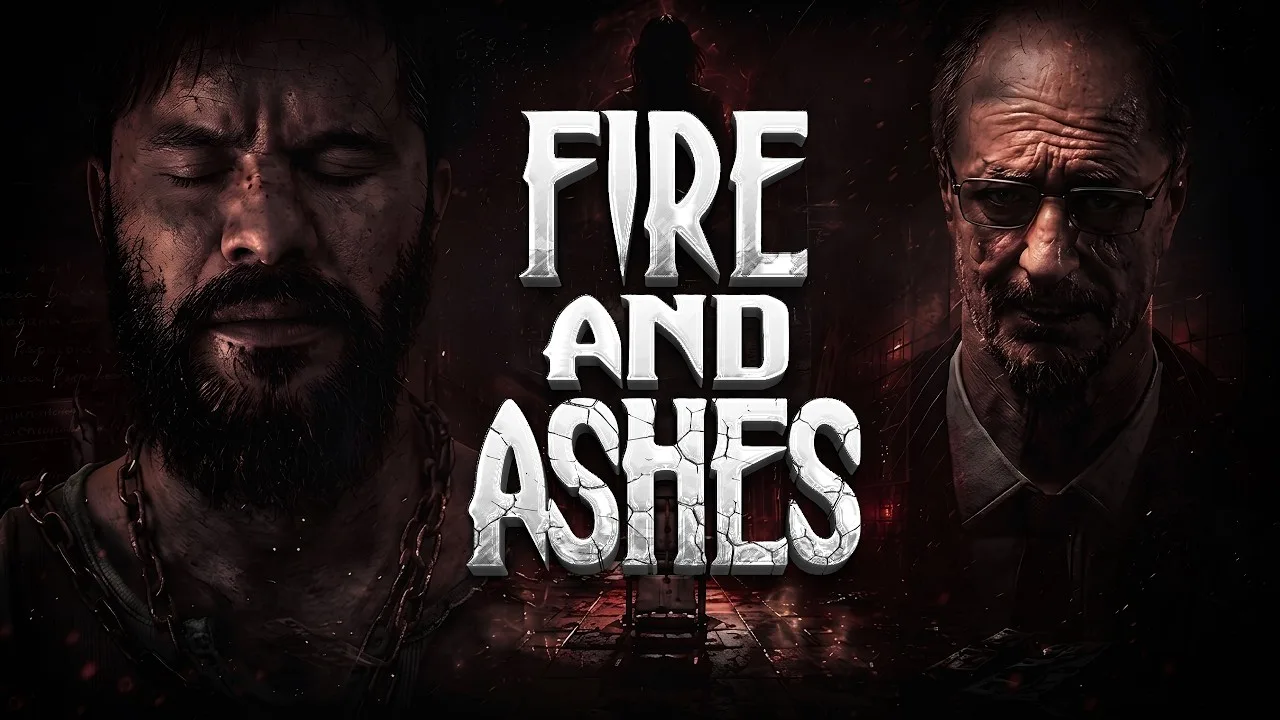
Which Graphics Settings Should You Start With?
A readable corridor matters when something is hunting you through the hospital. Start tuning FIRE AND ASHES graphics settings around clear movement and consistent performance so visual distractions stay out of your way during exploration and combat. Use the FIRE AND ASHES graphics settings below as starting choices, then adjust them while comparing the same scene.
The Windows version supports widescreen resolutions, 4K output, field-of-view adjustment, anti-aliasing, VSync, windowed mode, and borderless windowed mode. Build your setup around those controls rather than chasing a complicated configuration.
These starting choices prioritize a useful comparison baseline. They are suggestions for adjusting your own display, rather than measured performance presets.
| Setting | Suggested starting value | Purpose |
|---|---|---|
| Resolution | Your display’s native resolution | Begin with a clear image before trading detail for performance |
| Display mode | Borderless windowed | Start with a supported mode that fills the desktop |
| Field of view | Default initially | Establish a baseline before changing perspective |
| Anti-aliasing | Enabled initially | Compare smoother edges against the performance you need |
| VSync | Enabled if tearing distracts you | Compare image continuity with the feel of camera movement |
Keep your starting configuration simple. Change one control, revisit the same location, and decide whether the difference helps. Changing resolution, field of view, and anti-aliasing together makes it harder to identify which adjustment improved the experience.
For FIRE AND ASHES graphics settings, judge the result during movement as well as while standing still. Look along doorframes, turn through a corridor, and check whether the image remains comfortable to follow. A sharp still image is only part of the goal.
Avoid selecting 4K simply because the option is available. Match the resolution to your display and the performance you can sustain during actual play.
Check Your PC Against the Hardware Requirements
Before spending time adjusting FIRE AND ASHES graphics settings, compare your computer with the minimum and recommended hardware. The game requires a 64-bit processor and operating system, with Windows 10 and Windows 11 supported.
 Image: PlayStation Store
The graphics requirement moves from a GeForce GTX 1060 at minimum to a GeForce RTX 3060 in the recommended configuration. Both configurations call for 8 GB of system memory and 30 GB of available storage.
| Component | Minimum | Recommended |
|---|---|---|
| Operating system | Windows 10 or Windows 11, 64-bit | Windows 10 or Windows 11, 64-bit |
| Processor | Intel Core i5-4440 or equivalent | Intel Core i7-4770K or equivalent |
| System memory | 8 GB RAM | 8 GB RAM |
| Graphics card | GeForce GTX 1060 or equivalent | GeForce RTX 3060 or equivalent |
| DirectX | Version 11 | Version 11 |
| Available storage | 30 GB | 30 GB |
| Sound card | DirectX-compatible | DirectX-compatible |
Use these configurations to frame your expectations rather than choosing settings from the GPU name alone. Resolution, your processor, and the rest of your setup also belong in the decision.
If Your PC Is Near the Minimum Requirements
Start with a readable image at your display’s native resolution. If movement feels sluggish, compare a lower resolution before making several other changes.
Next, compare anti-aliasing enabled and disabled. Focus on the balance between edge clarity and responsiveness rather than trying to preserve every visual improvement.
Leave field of view at its starting position during these comparisons. Adjusting perspective at the same time introduces another visible change and makes the result harder to judge.
If Your PC Is Near the Recommended Requirements
Begin with native resolution and anti-aliasing enabled, then evaluate an active section of gameplay. Include exploration, camera movement, and an encounter when practical.
Keep successful settings in place. Raising resolution only makes sense when the resulting image and performance suit your display and preferences.
If Your PC Exceeds the Recommended Requirements
Use the additional headroom to explore image quality, but continue comparing actual gameplay. Support for 4K gives you another output option; it does not make that resolution the automatic choice.
Maintain the same standard across hardware tiers: preserve readable details and movement you can follow comfortably.
Balance Resolution, Anti-Aliasing, and Field of View
Resolution, edge smoothing, and perspective affect different parts of the image. Tune them separately when working through FIRE AND ASHES graphics settings, especially if your main complaint is that the game looks unclear.
Resolution determines the image’s pixel dimensions. Anti-aliasing addresses jagged edges. Field of view changes how much of the scene fits into your view.
Those distinctions help you make a targeted adjustment rather than moving every control in response to one problem.
| Control or feature | Supported capability | What to examine during comparison |
|---|---|---|
| Resolution | Widescreen resolutions and 4K output | Fine detail, object outlines, and overall clarity |
| Anti-aliasing | Edge smoothing | Jagged lines and distracting edge shimmer |
| Field of view | Adjustable perspective | How comfortably you read nearby and distant objects |
| Windowed mode | Gameplay inside a desktop window | Whether the window size suits your screen |
| Borderless windowed mode | Borderless desktop presentation | Whether presentation and switching tasks feel convenient |
| VSync | Display synchronization | Tearing and the feel of camera movement |
Set Resolution Before Fine-Tuning Edges
Begin at native resolution so you can judge the image without another resolution change complicating the comparison.
If performance is uncomfortable, lower resolution and revisit the same scene. Examine both movement and detail afterward. Keep the change only if the performance improvement is worth the loss of sharpness to you.
Avoid judging exclusively from menus. Check objects and surfaces inside the hospital, where you will actually be navigating, searching, and fighting.
Compare Anti-Aliasing While Moving
Look at strong outlines such as doorframes and other straight edges. Turn the camera slowly, then repeat the movement with the alternative anti-aliasing state.
Choose the result that makes the scene easier to read while preserving comfortable performance. Do not assume smoother edges alone settle the decision.
Adjust Field of View for Comfort
Return to field of view after settling the basic image. Compare your surroundings, nearby objects, and the apparent size of distant details.
Increase or decrease the view gradually rather than jumping between extremes. Stop when navigation feels comfortable and objects remain easy to recognize.
Treat field of view as a perspective adjustment. Use resolution and anti-aliasing comparisons to address image clarity instead of expecting one control to solve every visual complaint.
Troubleshoot Performance With Controlled Comparisons
When FIRE AND ASHES graphics settings need more adjustment, begin with the symptom. A torn image, rough edges, and sluggish movement call for different comparisons.
Keep the route and camera movement consistent between attempts. A quiet room and an enemy encounter put you in different situations, making them poor substitutes for each other when judging a settings change.
| Symptom | Adjustment to try | What to compare afterward |
|---|---|---|
| Visible screen tearing | Enable VSync | Image continuity during camera turns |
| Camera movement feels less responsive | Compare VSync enabled and disabled | Control feel alongside any tearing |
| Performance feels strained | Lower resolution | Movement smoothness and lost image detail |
| Object edges look jagged | Enable anti-aliasing | Edge appearance while stationary and moving |
| Perspective feels uncomfortable | Adjust field of view gradually | Navigation comfort and object readability |
| Desktop presentation feels awkward | Compare windowed and borderless windowed modes | Window size, screen coverage, and task switching |
Use the following comparison routine to keep your decisions clear:
- Pick a recognizable scene. Choose a place you can revisit without making the comparison unnecessarily difficult.
- Note your current choices. Keep enough detail to restore the previous configuration.
- Change one setting. Isolate the adjustment you want to evaluate.
- Repeat the same movement. Look around and move through the scene in a similar way.
- Keep or reverse the change. Decide before moving to another control.
Use an FPS display if you already have one available, but pair its readings with what you feel during play. Watch for uneven movement as well as changes in the displayed frame rate.
For FIRE AND ASHES graphics settings, favor consistency across exploration and encounters. Avoid rebuilding the entire configuration around a single brief slowdown, and revisit a troublesome section before deciding an adjustment solved it.
Keep display-mode comparisons focused on your own setup. Select borderless or windowed presentation because it works comfortably for your session, rather than assuming one guarantees higher performance.
Preserve Visibility During Exploration and Combat
Your final FIRE AND ASHES graphics settings should support what you actually do: search grim locations, solve puzzles, manage resources, and survive encounters.
Play as Henry Gray through a nightmare that begins in a psychiatric hospital and reaches into locations connected to his past. Give yourself time to evaluate the image in those situations instead of stopping at a visually impressive opening scene.
During exploration, check whether you can distinguish objects and follow the environment without repeatedly straining to interpret the picture. During combat, pay attention to camera movement and how comfortably you track opponents.
Sound also deserves attention. The game reacts to breathing, whispers, and vocal outbursts, making your voice part of survival. Keep your audio setup in mind while settling into a longer play session.
A microphone is recommended for the voice features, and the full game can also be completed without one. Choose the way you want to play, then evaluate graphics while using that setup so the comparison reflects your normal session.
Before finishing, run through a short checklist:
- Confirm that your chosen resolution remains comfortable to read.
- Revisit anti-aliasing during camera movement.
- Check field of view while exploring.
- Compare VSync based on tearing and control feel.
- Keep the configuration that works across different situations.
If you are preparing to play, visit the FIRE AND ASHES Steam page to purchase or download the game.
FAQ
Which FIRE AND ASHES graphics settings should I adjust first?
Start with resolution, then compare anti-aliasing and VSync. Leave field of view at its default initially so perspective changes do not complicate the image comparison. Adjust one control at a time and revisit the same scene.
Does FIRE AND ASHES support 4K and borderless windowed mode?
Yes. The Windows version supports 4K output, widescreen resolutions, windowed mode, and borderless windowed mode. Choose the resolution and presentation that suit your display and gameplay performance.
What graphics card does FIRE AND ASHES require?
The minimum graphics requirement is a GeForce GTX 1060 or equivalent. The recommended graphics card is a GeForce RTX 3060 or equivalent. Both hardware configurations require 8 GB of system memory.
Do I need a microphone to play?
No. FIRE AND ASHES can be completed without a microphone. Use one to engage with the voice features, which let the game react to sounds such as your breathing, whispers, and shouts.
Continue with
 FIRE AND ASHES Languages: Full PC AND PS5 Support GuideExplore FIRE AND ASHES languages on PC and PS5, including English and Russian audio, subtitles, and Portuguese differences. Choose your preferred version.
More in Settings & Controls
FIRE AND ASHES Audio Settings: Mic AND Sound Guide
Adjust FIRE AND ASHES audio settings for microphone use, voice controls, and sound-triggered combat, or play the complete horror game without a mic.
FIRE AND ASHES Controller Support: PC AND PS5 Guide
See FIRE AND ASHES controller support on PC and PS5, including compatible gamepads, remapping, sensitivity controls, microphone options, and input fixes.
FIRE AND ASHES Controls: Voice, Combat, AND PC Inputs
Learn FIRE AND ASHES controls for voice actions, melee combat, inventory, and Electric Voice. Get practical tips for playing with or without a microphone.
FIRE AND ASHES Performance: PC Settings AND FPS Guide
Improve FIRE AND ASHES performance with a practical PC settings guide covering system requirements, display options, stuttering, and microphone setup tips.
Join the community
Official channels for news, updates and player help: